Who can edit
Every options page has its own list of roles that can open it and change its values. Give your client's editors the page with the opening hours, a shop manager the page with the shop settings, and keep the rest for administrators.
This page is about version 1.1 and later. In 1.0, a page had a select User access level with Administrator and Editor. See What happens to pages of 1.0.
Choose the roles of a page
- Open the menu in the editor, in Options Pages → All Options Pages.
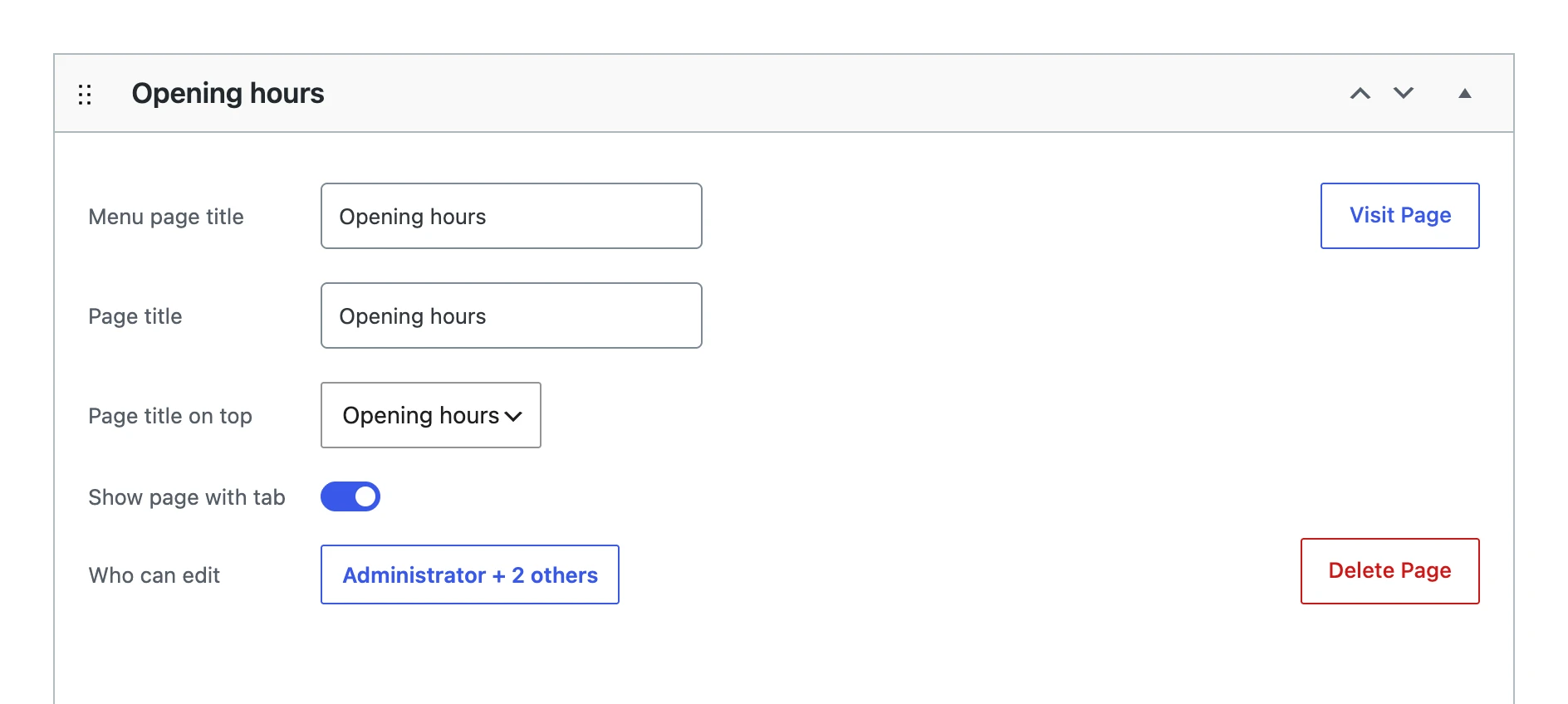
- In the card of the page, click the button next to Who can edit. It shows how many roles have access, for example Administrator + 0 others.
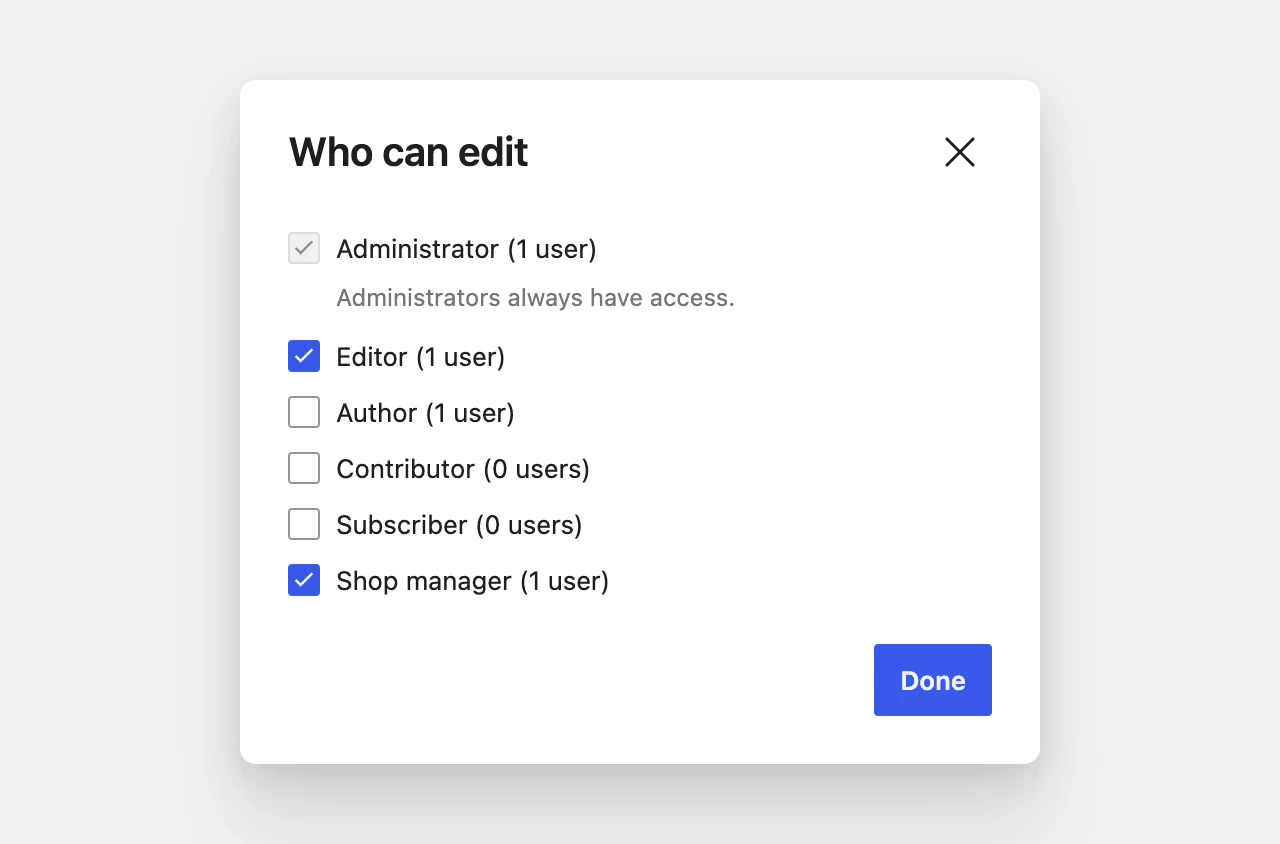
- A dialog opens with a checkbox for every role of the site. Check the roles that can edit the page.
- Click Done, then Save (or Update) at the top right.
The button now shows the number of roles you checked, for example Administrator + 2 others. Every page of a menu has its own list, so two pages of the same menu can be for different people.
The list of roles
The dialog shows every role of the site: the roles of WordPress (Editor, Author, Contributor, Subscriber), the roles of other plugins, such as Shop manager of WooCommerce, and roles you made yourself. Next to each role is the number of users that have it, for example Editor (3 users).
- Administrator is always checked, and you cannot uncheck it: Administrators always have access. An administrator can open every options page.
- A checked role whose users cannot open the dashboard gets the message Users with this role cannot open the dashboard. Some plugins keep roles like Customer out of the dashboard; those users will not see the page, even when the role is checked.
- A role that was checked but does not exist on the site any more, for example because the plugin that added it was removed, is shown as (no longer available) after its name. It gives nobody access. Uncheck it to remove it, or leave it: when the role comes back, its users have access again.
What a user with access sees
A user with a checked role sees the options page in the admin sidebar and can change and save its values, the same way an administrator does. Pages of the menu they have no access to are not shown to them.
The editor of Admin Options Pages itself stays for administrators: only they can create menus, add fields and choose who can edit a page.
One user, one page
Do you want to give access to a single user, not to a whole role? A plugin that manages roles and capabilities can do that, such as Members or User Role Editor.
Every options page has its own capability, aop_page_ followed by the slug of the page. These plugins list them in the group Admin Options Pages, with the menu title of each page. Give the capability to a user or a role, and they can open that page, also when their role is not checked in Who can edit.
Pages made with 1.0
Pages you made with version 1.0 keep working after the update, for the same people as before:
- a page with the level Administrator is only for administrators;
- a page with the level Editor is for every role that has the capability of an editor (
edit_others_posts).
When you open such a page in the editor, Who can edit shows the roles that have access now. Usually that is Editor, and with WooCommerce also Shop manager. Save the menu once and that list is stored with the page; from then on it only changes when you change it.
Import and export
An export contains the roles of every page. When you import it on another site, the preview warns you when a role does not exist there:
The role "shop_manager" of the page "Shop" does not exist on this site. Until it does, users with that role cannot open the page.
The page is imported anyway. Add the role on that site, for example by activating the plugin that makes it, or choose other roles in the editor.